Upload a DA Form 1059 to iPERMS: A Practical Guide
Uploading a DA Form 1059 to iPERMS becomes simpler once the academic report, transcript and personnel record are treated as separate documents. The DA Form 1059, also called a service school academic report, records a soldier’s academic performance in a formal Army school course. A transcript confirms attendance, credits and examination results.
This guide explains preparation, submission and verification for the U.S. Army’s Integrated Personnel and Electronic Records Management System. It is written for Australian personnel who may encounter the process through a U.S. unit, exchange or training arrangement. The software is overseas: only authorised users of the relevant Army portal can submit records, even when an Australian adviser explains the workflow.
| Record |
Main purpose |
Key contents |
Confirm with |
| DA Form 1059 |
School-course performance |
Course, evaluation periods, results and instructor signature |
School or training office |
| Transcript |
Credits and examination results |
Completion status, credit hours and final scores |
Registrar |
| Unit OER or NCOER |
Performance in a unit assignment |
Duties, rating period, rater comments and endorsements |
Chain of command |
| Certificate |
Evidence of attendance |
Course dates and completion |
Training office |
Know What the Form Should Contain
Before scanning, check the title, course, soldier name and evaluation periods against the original. Required signatures should be present, and no page should be cropped. A missing signature or unreadable section can make an otherwise clean PDF incomplete.
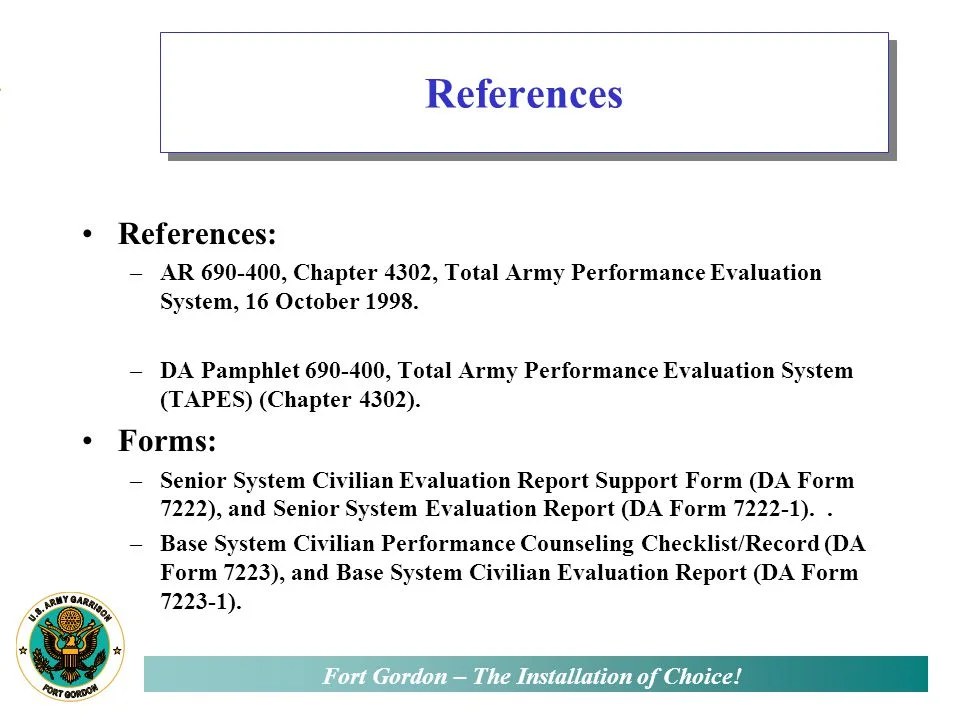
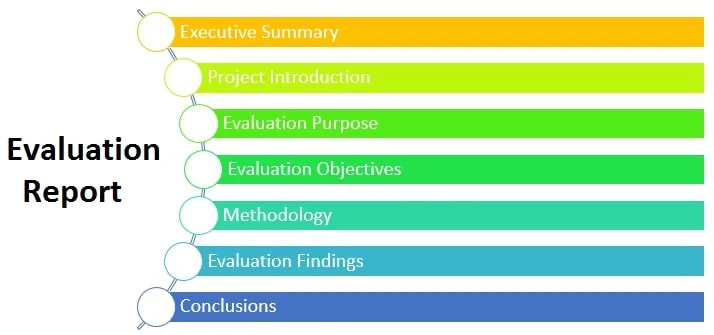
An academic evaluation is more than entering a final grade. The evaluation reporting system guide explains how Army evaluation documents fit together, while the DA Form 1059 supports the school record itself. Keep the signed original or certified copy under unit records policy; a casual photograph is rarely sufficient.
School evaluators and unit raters perform different roles. An instructor’s assessment of coursework is not a senior leader’s assessment of leadership and conduct. Similarly, an OER or NCOER does not replace the academic report for a service school.
Prepare Files and Access
Gather the form, access and course details before starting. A soldier normally needs active portal credentials; a Common Access Card, if issued, is often used for Army systems. If your role does not permit academic uploads, the school or training staff may submit the record.
Documents and information to gather
- Completed DA Form 1059 with required signatures and evaluation periods
- Legible PDF or high-resolution scan of every page
- Course title, school, dates and any transcript for checking
- Active CAC, portal access and a training-office contact
Save a working copy, then scan every page upright and legibly. A routine near Canberra’s Russell offices, where many Defence administrative functions are located, might involve collecting a countersignature at work and scanning it later. Australian shoppers also check specifications at work boot retailers, a habit that applies equally to document format, size and legibility.
Checks before submission
- Soldier’s name and identifier match the personnel record
- Course title and dates match the academic history
- Every signature and evaluation block is visible
- The file opens on another device without a password
Upload Through the Personnel Portal
iPERMS is commonly reached through the IPPS-A personnel portal. Sign in with authorised credentials, open the education or academic area of your personnel file and locate the completed school course. Menu labels can change with system updates, so use the academic evaluation or document-management controls currently available.
Choose the correct course record and select the control to add, attach or upload an academic evaluation. Attach the final signed DA Form 1059. If asked for a document type, choose the service school academic report or the closest academic evaluation category; do not use an OER or NCOER category for school work.
Watch for upload confirmations, size limits and error messages. A message that a file was attached does not prove it reached the right course. Keep the screen open until success is confirmed, then note the date and submitted file name.
If you can view the record but cannot upload, permissions may be the issue rather than the PDF. An administrator, unit human resources specialist or training manager may have to act. Public references such as EES Army guidance can clarify terminology, but they cannot grant access or replace the official portal.
Confirm the Evaluation and Its History
After uploading, reopen the academic record and confirm that the attachment appears with the correct course. Open it and inspect every page for dates, signatures, comments and readable text. An upload is useful only when reviewers can retrieve and read it.
Also check the education history for the expected course, credits and completion status. Some entries are created by the school while the evaluation is uploaded by the soldier or sponsor, so both steps may occur at different times. Ask the training office whether the report is pending instead of repeatedly uploading identical files.
Guidance on senior rater profiles and a rater’s center of mass concerns leadership impressions, not school results, so it is not the right reference for an academic-report discrepancy. Keep questions about instructor assessment, transcript credits or document visibility with the appropriate training or registrar contact.
Resolve Errors and Protect the Record
A rejected file may be too large, corrupted, password-protected or unsupported by the browser. Download it again, remove unnecessary restrictions and retry using the browser named in portal guidance. If the course already has an entry, ask an administrator whether an earlier upload is pending.
Local information and official records serve different purposes. A Sydney commuter may see neighbourhood and transport headlines from Tato Bay News, but such coverage cannot authenticate an iPERMS request. Reach the personnel portal through known unit or government channels, never through a link in an unsolicited message.
Records handling by an Australian organisation may engage the Privacy Act 1988 where applicable, while commercial electronic messages may fall under the Spam Act 2003. Ask the responsible records officer before emailing a signed academic report to an unverified address. Use approved channels, limit extra copies and confirm the recipient’s role when a request comes from outside the unit.
When contacting support, include the course, school, completion date, document type and exact error message. Never post a full form, signature page or personnel identifier on social media. The education office or training manager can establish who is authorised to submit a blocked record.